

Most people set up Google Search Console, look at it twice, and never open it again. Not because it’s hard. Because every guide they find describes what the buttons do, then stops right before the part that matters: what to actually do when the numbers look wrong.
So this one is built the other way around.
Google Search Console is a free tool from Google that shows how your website performs in Google Search. It reports the queries people searched before they clicked, which of your pages are indexed, and any errors stopping Google from crawling your site. You verify ownership of a site to use it, and the data comes straight from Google rather than from a tracking tag.
Below: how to set it up properly the first time, the six reports worth your attention, how to read the patterns in your data, and what Google has changed recently that older articles miss.
What is Google Search Console?
It launched as Google Webmaster Tools and got renamed in May 2015, which is why you’ll still see the old name floating around in forum posts and outdated tutorials.
Here’s the thing that makes it different from every other tool in your stack. Analytics platforms watch your visitors. Google Search Console watches Google. It’s the only place you get Google’s own account of how it crawls your site, what it decided to index, and which searches put you in front of people. No third party estimates it. No script infers it. That’s the raw record.
It’s free, with no paid tier, no seat limits, and no upsell.
What it isn’t: a rank tracker, a live dashboard, or a substitute for analytics. Data lags by two to three days. It only covers organic search, so your paid, social, and direct traffic are invisible here. And it won’t tell you what someone did after they landed. For that you need a separate tool.
Think of it as the diagnostic port on a car. It won’t drive for you. It tells you exactly what’s broken.
Google Search Console vs Google Analytics
This trips up nearly everyone, and the two tools get treated as competitors when they answer completely different questions.
| Google Search Console | Google Analytics | |
|---|---|---|
| What it measures | How Google sees your site | What visitors do on your site |
| Where data comes from | Google’s index and search results | A tracking tag on your pages |
| Question it answers | Why aren’t we ranking? | Why aren’t they converting? |
| Traffic covered | Organic search only | Every source |
| Shows search queries | Yes | No |
| Shows on-site behavior | No | Yes |
Split the visit at the moment someone clicks. Google Search Console owns everything before that click. Google Analytics, currently GA4 after Universal Analytics stopped processing in July 2023, owns everything after it. A page can rank beautifully and convert nobody, and you’d only ever spot half of that problem in either tool alone.
Use both. They’re not alternatives.
Setting it up: pick the right property type
Before you verify anything, Google Search Console asks you to choose between a domain property and a URL-prefix property. It looks like a throwaway question. It isn’t. Get it wrong and you’ll be missing data for months without knowing.
| Domain property | URL-prefix property | |
|---|---|---|
| Covers | Every subdomain, http and https | Only the exact URL you enter |
| Includes www and non-www | Yes, automatically | No, counts as separate properties |
| Verification | DNS record only | Five different methods |
| Best for | Almost everyone | Testing one section, or when you can’t touch DNS |
Pick the domain property. It’s the right default for nearly every site.
The reason is simple. A URL-prefix property set to https://www.yoursite.com won’t report anything for https://yoursite.com, or for blog.yoursite.com, or for any page still sitting on http. People discover this six months in, when they finally notice their blog subdomain generated thousands of impressions that never showed up anywhere.
And here’s the awkward part of the design: the property type you want is locked behind the one verification method that needs DNS access. If your hosting is locked down or someone else controls the nameservers, start with a URL-prefix property and switch once you get access.
The five ways to verify ownership
Google needs proof the site is yours. Five options, and they’re not equally convenient.
| Method | What you need | Watch out for |
|---|---|---|
| DNS record | Access to your domain’s DNS settings | Only route to a domain property. TXT record, can take hours to propagate |
| HTML file upload | Ability to upload to your web root | Never delete the file, verification breaks |
| HTML tag | Ability to edit the <head> section | Theme updates can wipe it |
| Google Analytics | GA already installed, with edit permission | Breaks if you migrate analytics |
| Google Tag Manager | GTM container installed | Needs publish rights, not just edit |
DNS is the most durable of the five. It survives site redesigns, CMS migrations, and theme updates, and it’s the only method that gives you the full-domain view. The other four live inside your website, which means anything that changes your website can quietly break them.
Whichever you choose, don’t remove it afterward. Google rechecks periodically, and a failed recheck costs you access along with your historical data.
How the reports fit together
Worth thirty seconds before the tour, because it makes every report make sense.
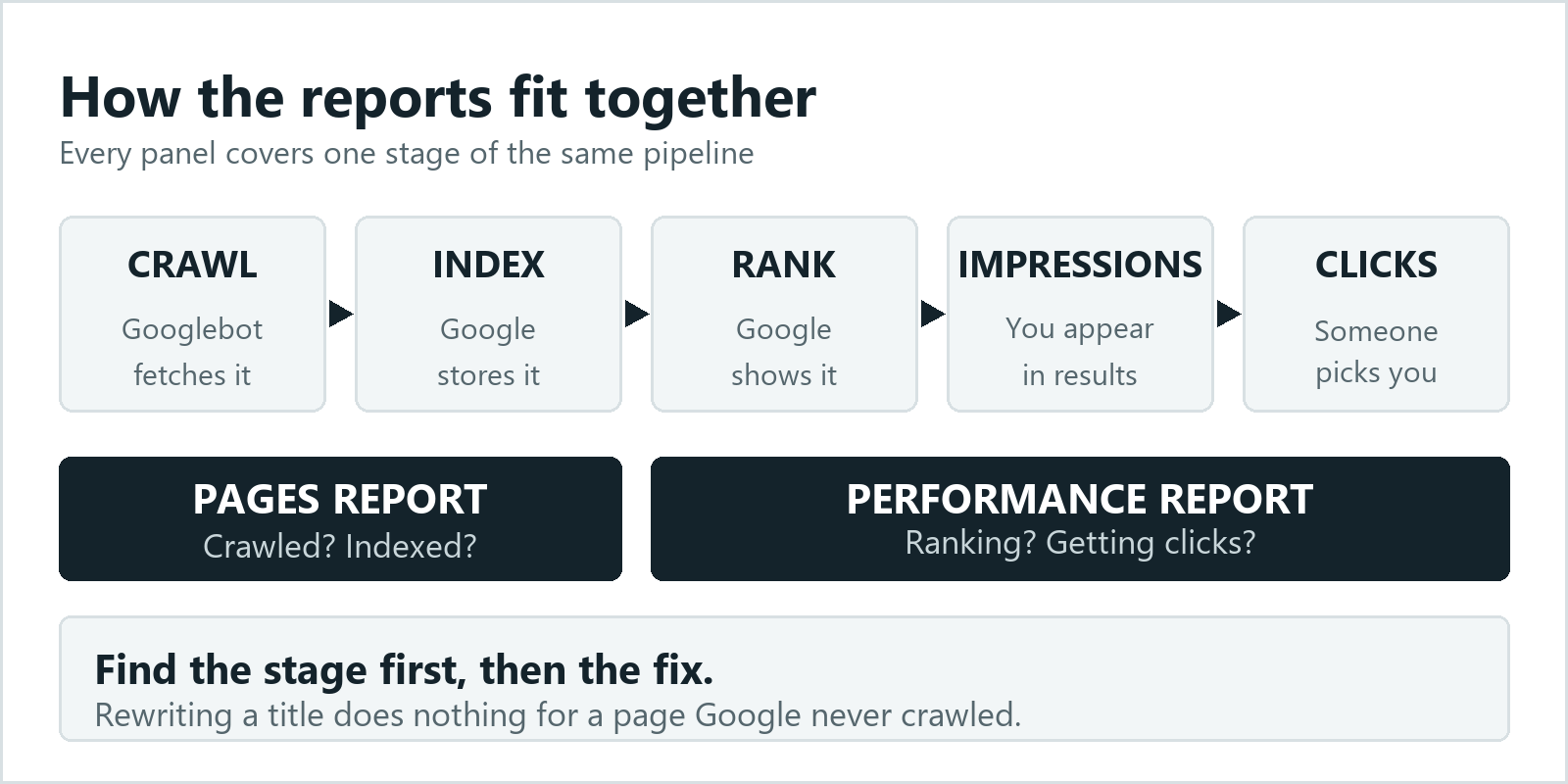
Google finds a page, crawls it, decides whether to index it, then decides whether to rank it. Ranking earns impressions. A fraction of those impressions turn into clicks. That’s the whole pipeline, and every panel in Google Search Console reports on one stage of it.
The Pages report covers the early stages: did Google crawl this, did it index it, and if not, why. Performance covers the late stages: are you ranking, and are people clicking. Once you know which stage your problem sits at, you know which report to open and which fix will work. Rewriting a title does nothing for a page Google never crawled.
The six reports that actually matter
Google Search Console has more than twenty panels. Most of them you’ll open once out of curiosity. These six are where the work happens.
Performance
The report you’ll live in. Four metrics: clicks, impressions, click-through rate, and average position. Filter by query, page, country, and device.
The single most useful move here is comparing date ranges. Last 28 days against the previous 28 tells you more in ten seconds than a month of staring at a single-period chart.
Second most useful, and almost nobody does it: change the search type. The report defaults to Web, but there are separate tabs for Image, Video, and News. Plenty of sites pull real traffic through image search and never notice, because they only ever look at the default view. Worth checking once even if you assume it’s zero.
*When it looks wrong:* a sharp drop across every query usually points to a technical problem or a Google core update. A drop confined to one page is almost always that page.
Pages
Formerly Index Coverage. It splits your URLs into indexed and not indexed, then groups the failures by reason: crawled but not indexed, discovered but not crawled, blocked by robots.txt, marked noindex, and so on.
Two of those reasons look similar and mean opposite things.
Discovered, currently not indexed usually isn’t about quality at all. Google only crawls so much of a large site before it moves on, and pages sitting in this bucket often just haven’t had their turn. Improving internal links to them helps. Rewriting them doesn’t.
Crawled, currently not indexed is Google telling you it looked and wasn’t impressed. That’s a content judgment, and no amount of resubmitting changes it.
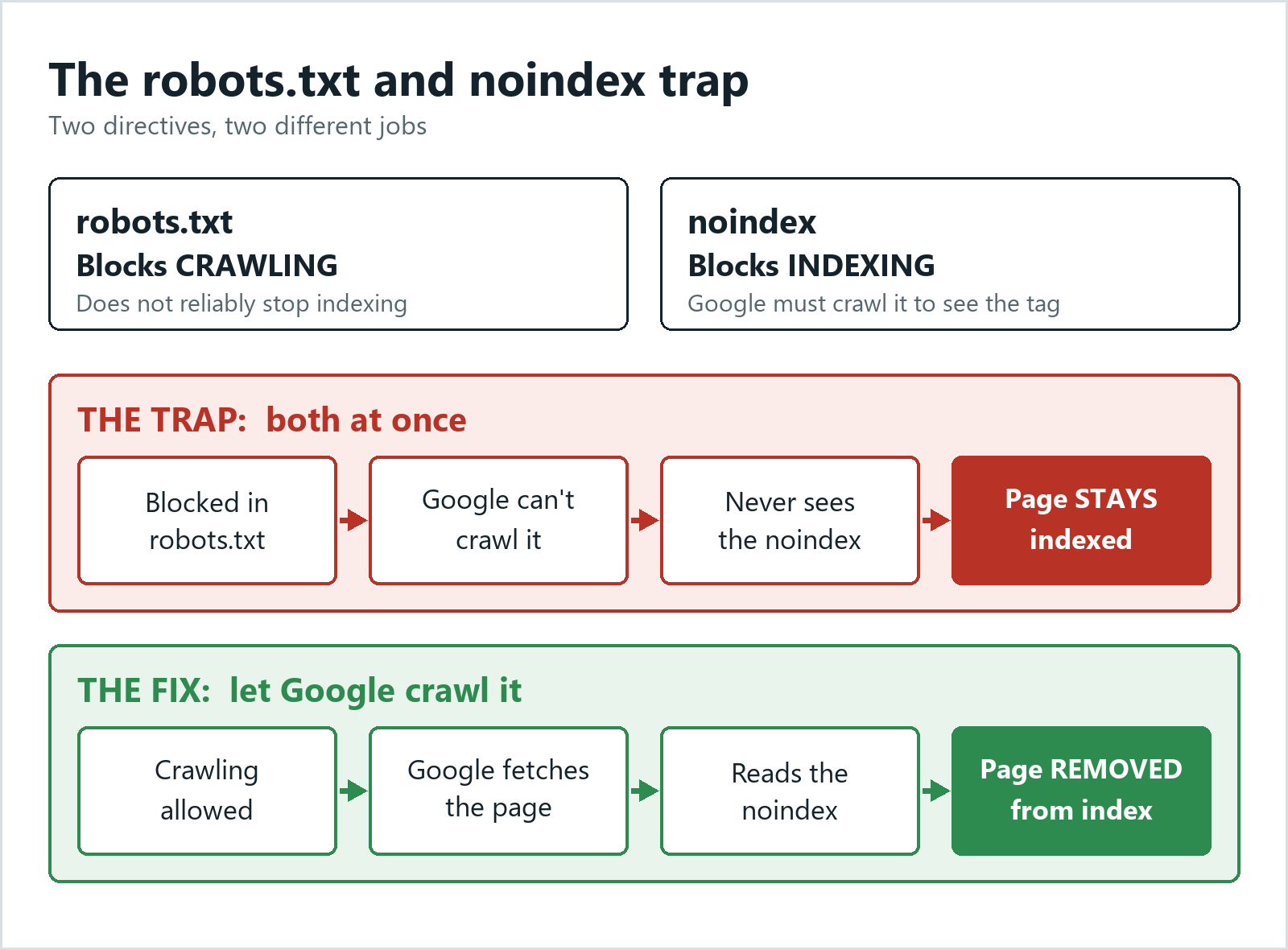
The robots.txt trap. These two directives do different jobs and people combine them wrongly all the time. Robots.txt blocks crawling, not indexing, so a blocked page can still end up in Google’s index. A noindex tag blocks indexing, but Google has to crawl the page to see it. Block a noindexed page in robots.txt and Google never reads the noindex, so the page stays indexed. If you actually want a page gone, let Google crawl it and serve the noindex.
*When it looks wrong:* read the not-indexed reasons in order of volume. That’s your priority list, already sorted.
URL Inspection
Your single-page diagnostic. Paste any URL and Google Search Console tells you whether it’s indexed, when it last crawled, which canonical it picked, and whether structured data was detected.
Note the wording on canonicals: Google picked. You can declare a canonical with rel="canonical" and Google can choose a different one anyway. This report is where you find out, and plenty of confusing indexing problems turn out to be exactly that.
The other thing people miss: there are two views. The default shows the indexed version, which might be weeks old. Hit “Test live URL” to see the page as it exists right now. If those two disagree, you’ve found your problem.
*When it looks wrong:* “URL is not on Google” plus a live test that passes usually just means waiting. Request indexing once, then leave it alone.
Sitemaps
Submit your XML sitemap here so Google can find your pages faster. One file holds up to 50,000 URLs or 50MB uncompressed, whichever comes first, and past that you split it and use a sitemap index.
One thing worth being clear about: “Success” means Google read the file. It does not mean your pages got indexed. Those are separate things, and confusing them causes a lot of unnecessary panic.
*When it looks wrong:* if the discovered URL count is far below what you submitted, your sitemap is probably listing URLs that redirect, 404, or carry a noindex tag.
Core Web Vitals
Three metrics with published thresholds. Largest Contentful Paint under 2.5 seconds, Interaction to Next Paint under 200 milliseconds, and Cumulative Layout Shift under 0.1. INP replaced First Input Delay in March 2024, so anything still telling you to optimize FID is out of date.
This is field data, pulled from the Chrome User Experience Report, which collects from real Chrome users on real connections. It isn’t the lab data Lighthouse and PageSpeed Insights generate on a simulated device. That’s why a 98 in Lighthouse can sit right next to a failing grade here, and why the field number is the one Google uses.
*When it looks wrong:* fix by URL group, not by page. Google Search Console clusters similar pages, so one template fix usually clears hundreds at once.
Security and Manual Actions
Two panels you want permanently empty. A manual action means a human reviewer at Google penalized your site. A security issue means malware or hacked content.
Rare. Urgent when they happen. Check that they’re clear, then stop thinking about them.
What’s new in Google Search Console
Most articles ranking for this topic haven’t been updated in years, so here’s what they’re missing.
Generative AI performance reports arrived in June 2026, and they’re the biggest change to the tool in years. Google Search Console now gives you a dedicated view of how often your pages appear inside AI Overviews and AI Mode, with a matching report for Discover. Impressions break down by page, country, device and date, right down to hourly granularity. Google started with a subset of properties, so check whether yours has it yet. Until this shipped, AI traffic was invisible inside your ordinary totals. That’s no longer the case, and any guide still telling you that you can’t isolate it is out of date.
Query groups in Search Console Insights cluster your searches by topic instead of listing them one at a time, which is much closer to how you actually think about your content.
A branded queries filter separates people searching for your name from people searching for what you do. That’s one of the most useful cuts of the data there is, and it used to take a hand-built regex to fake.
Custom annotations let you mark the day you migrated, redesigned or shipped something big, so a drop or spike still has an explanation sitting next to it six months later.
Weekly and monthly views joined the daily one, and the 24-hour view still gives you near-real-time numbers when you’ve just pushed a fix and don’t want to wait out the usual lag.
Recommendations surfaces suggested actions from your own property data. Treat these as prompts rather than instructions. They’re generic by nature and they don’t know your priorities.
How to read the data
This is the part everyone skips, and it’s the whole job. Six patterns cover most of what you’ll see.
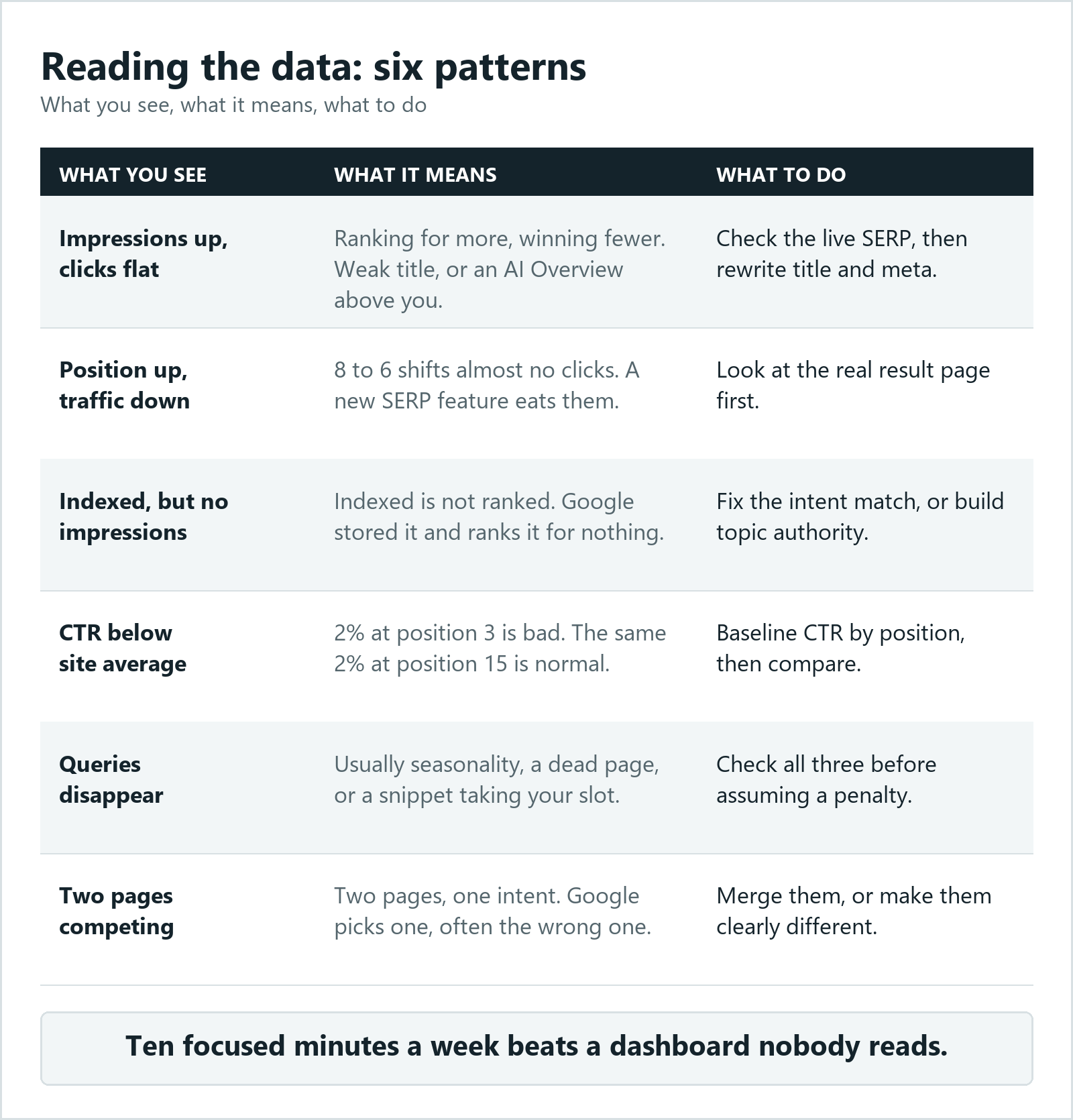
Impressions rising, clicks flat.
You’re ranking for more searches and winning fewer of them. That’s a presentation problem, not a ranking problem. Either your title and meta description aren’t earning the click, or an AI Overview has appeared above you and answered the question outright. Check the live SERP, the search engine results page itself, before you rewrite anything. If your property has the generative AI report, it will tell you directly.
Average position improving, traffic falling.
Moving from 8 to 6 changes almost nothing in real clicks. Meanwhile a new feature above you can eat the traffic outright. Look at the actual result page for your main queries before you celebrate a position gain.
Page indexed, zero impressions.
Indexed is not the same as ranked. Google has stored the page and decided it isn’t a good answer for anything. That’s usually a mismatch between what the page covers and what people search, or a topic where you don’t yet have the authority to compete.
CTR far below your site average.
Pull your average CTR by position first, then compare pages against that baseline rather than against each other. A page at position 3 with 2% CTR is badly underperforming. The same 2% at position 15 is normal.
Queries that disappear.
Before assuming a penalty, check three things: seasonality, whether the page still returns a 200, and whether a featured snippet or AI Overview now sits where you used to be. Most vanishing queries are one of those, not a punishment.
One page eating another page’s queries.
Filter Performance by a query you care about, then switch to the Pages tab to see which URL Google is actually showing for it. When two of your pages cover similar ground, Google picks one and it’s often not the one you’d choose. If the wrong URL is ranking, you have a cannibalization problem, and the fix is merging the pages or making the difference between them much clearer.
None of this needs a paid tool. It needs someone to actually look. Ten focused minutes a week beats a dashboard nobody reads.
Reports Google has retired
Two features still described as current in guides ranking on page one right now:
| Report | Status | What to use instead |
|---|---|---|
| Mobile Usability | Removed December 2023 | Chrome DevTools device mode, plus Core Web Vitals |
| AMP | Reporting retired, no longer needed for Top Stories | Core Web Vitals and standard page speed work |
If an article tells you to check Mobile Usability in Google Search Console, it hasn’t been touched in three years. Worth knowing when you’re deciding what advice to trust. Google Search Central publishes these changes as they happen, and it’s the only source worth taking at face value.
The limits you’ll run into
Nobody mentions these until you hit them.
Export caps. The Performance report interface shows a maximum of 1,000 rows. Beyond that you need the Search Console API or a Looker Studio connection, which reads the same data without the ceiling.
16 months of history. That’s all Google Search Console keeps. If you want year-over-year comparisons past that, export regularly and store it yourself. Start now, because you can’t backfill.
Anonymized queries. Rare searches get stripped out to protect privacy, which means your query-level clicks will always total less than your overall clicks. That gap is by design, not a bug, and it catches people out every time.
Two to three day delay. Standard reports lag. The 24-hour view helps, but don’t judge yesterday’s publish by this morning’s numbers.
Permissions. Owners can add users. Full users see almost everything but can’t add people. Delegating access is the usual reason someone loses their verification later.
Your first 30 days
If you’ve just set it up, here’s the order that works.
Week one. Verify by DNS, submit your sitemap, then open the Pages report and note how many URLs are indexed against how many you expected. That gap is your first project.
Week two. Leave it alone and let data collect. Come back and record your baseline: total clicks, impressions, and average CTR for the period. Write the numbers down somewhere. You’ll want them later.
Week three. Sort Performance by impressions, find the pages with the worst CTR relative to their position, and rewrite those titles and meta descriptions. This is the fastest win in the whole tool, and it doesn’t require a single new page.
Week four. Work through the not-indexed reasons in Pages, biggest bucket first. Fix what’s technical. For anything sitting in “crawled, currently not indexed”, improve the page instead of resubmitting it.
After that it’s a weekly ten-minute check and a proper monthly review.
Want help with this? See our local SEO service for US service businesses.
Questions people ask
How do you access Google Search Console?
Go to search.google.com/search-console and sign in with a Google account. If you’ve already verified a property you’ll land on your dashboard. If not, you’ll be asked to add one and prove you own it.
What is the difference between Google Analytics and Google Search Console?
Google Search Console shows how Google sees your site before someone clicks: search queries, rankings, indexing. Analytics shows what people do after they arrive. One covers organic search only, the other covers every traffic source. You want both.
Can I use Google Search Console for free?
Yes, completely. There’s no paid version, no usage limit, and no restriction on how many properties you add. You only need a Google account and the ability to verify ownership of the site.
Do you need Google Search Console?
If you care about organic traffic, yes. It’s the only source of Google’s own data about your site, including which queries you appear for and why pages aren’t indexed. Nothing else provides that.
What is Google Search Console used for?
Four main jobs: tracking search performance, checking indexing status, diagnosing crawl and technical errors, and submitting sitemaps or individual URLs for indexing. Most people use it for the first two.
Is there an equivalent for Bing?
Bing Webmaster Tools, run by Microsoft, and it works much the same way. You can import your verified sites straight from Google Search Console, which takes about a minute. Worth doing if Bing sends you meaningful traffic.
Google Search Console won’t fix anything on its own. It just removes the guessing, and that’s most of the battle. Verify the domain property, get your sitemap in, and spend twenty minutes in the Performance report comparing this month against last. You’ll find something worth fixing on the first pass.
Rather have someone go through this data with you and say what is actually worth fixing? Book a 20-minute call and we will do it together.
GA4 watches what happens after the click; we wrote the same plain-English breakdown for it in our Google Analytics 4 guide for service businesses.